
How to Automate Bank Statement Data Extraction from PDFs
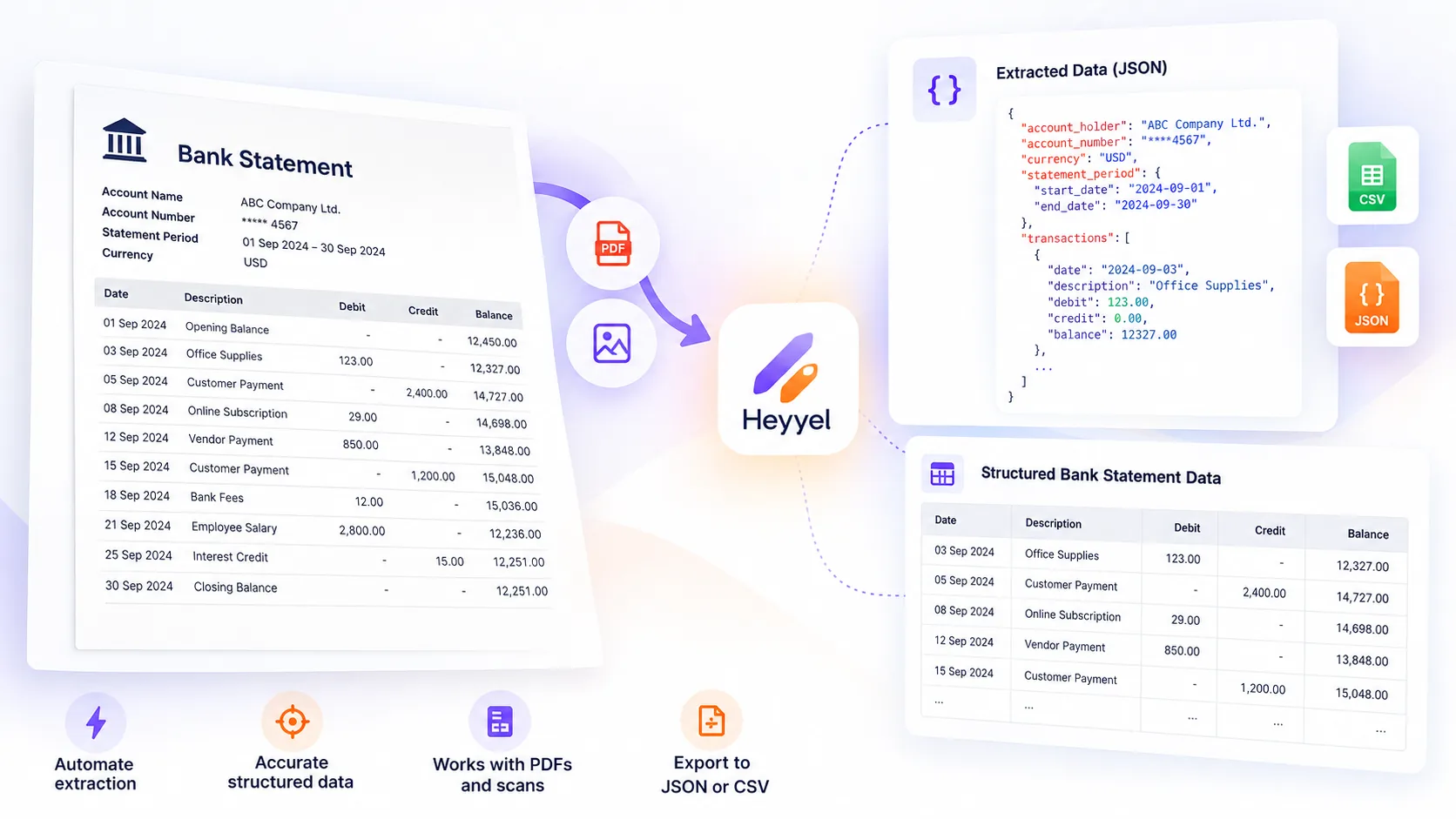
Bank statements contain valuable financial information, but extracting that data manually can quickly become a time-consuming task.
For finance teams, accountants, and businesses processing multiple bank statements every month, copying transaction dates, amounts, descriptions, and balances into spreadsheets creates repetitive work and increases the risk of errors.
Automated bank statement data extraction simplifies this process by converting PDF bank statements and scanned documents into structured data that can be reviewed, analyzed, and reused.
In this guide, we'll explain how automated extraction works, what information you can retrieve, and how to convert bank statements into JSON or CSV without manually entering every transaction.
On this page
What Is Automated Bank Statement Data Extraction?Why Automate Bank Statement Data Extraction?What Data Can Be Extracted from Bank Statements?How to Extract Bank Statement Data AutomaticallyExample: Extract Bank Statement Transactions into JSONBank Statement OCR vs. Automated Data ExtractionCommon Challenges in Automated Bank Statement ExtractionHow Businesses Use Automated Bank Statement ExtractionAutomate Bank Statement Processing with Heyyel Data ExtractorFrequently Asked QuestionsFinal ThoughtsWhat Is Automated Bank Statement Data Extraction?
Automated bank statement data extraction is the process of identifying and retrieving financial information from bank statements using document processing technology.
Instead of manually reading each transaction and entering the details into a spreadsheet, an extraction tool identifies selected information and organizes it into structured fields.
For example, a bank statement containing 150 transactions may include:
- Account holder and account number
- Statement period and currency
- Opening and closing balances
- Transaction dates and descriptions
- Debit and credit amounts
- Transaction references
With automated extraction, this information can be converted into structured JSON or CSV data for further processing. Unlike basic text extraction, structured extraction connects information to predefined fields. This distinction matters when bank statements contain multiple pages, different layouts, or complex transaction tables.
Why Automate Bank Statement Data Extraction?
1. Reduce manual data entry
Copying transaction details from PDF statements into Excel requires repetitive work. For teams handling large volumes of statements, automated data extraction reduces the work involved in transferring financial information into spreadsheets.
2. Process different bank statement formats
Bank statements do not follow a universal layout. Some banks use traditional tables, while others use different labels, multiple sections, or descriptions spread across several lines. AI-based extraction can help identify the same target fields across varying layouts.
3. Prepare financial data for reconciliation
Accounting and finance teams compare bank transactions against invoices, payments, and accounting records. Structured transaction data helps organize this information consistently before reconciliation.
4. Reduce repetitive processing errors
Manual entry can introduce missing transactions, incorrect amounts, or formatting inconsistencies. Automated extraction reduces repetitive transcription work, although important financial values should still be validated.
What Data Can Be Extracted from Bank Statements?
The information extracted depends on the statement format and the fields required by your workflow. Most business processes focus on account information and transaction details.
| Data category | Extractable information |
|---|---|
| Account details | Account holder, account number, currency |
| Statement information | Start date, end date |
| Balances | Opening balance, closing balance |
| Transactions | Transaction date, description, amount |
| Transaction classification | Debit, credit |
| References | Transaction reference, counterparty when available |
| Custom fields | Additional business-specific information |
For example, a finance team may need only dates, descriptions, debits, and credits. An accounting department preparing monthly reconciliation reports may also require balances, account identifiers, and references.
How to Extract Bank Statement Data Automatically
Automating bank statement extraction does not necessarily require building a custom OCR system or manually configuring a parser for every bank. The following workflow illustrates how to extract structured information using Heyyel Data Extractor.
Step 1: Upload your bank statement
Upload the PDF or image containing the information you want to extract. Supported formats include PDF, JPG, PNG, WebP, and TIFF. Scanned statements may require OCR before information can be structured.
Step 2: Select the Bank Statement preset
Choose the Bank Statement document type and review suggested fields, including account information, statement period, balances, and transactions.
Step 3: Define your extraction fields
For a transaction list, you might define date, description, debit, credit, and reference. Defining the right fields is essential when extracting specific data from PDFs, particularly when tables contain multiple dates, amounts, and references.
Specific field names and clear extraction hints help clarify ambiguous values. Additional fields can be introduced when a workflow requires more details.
Step 4: Run the extraction
Start the extraction process after configuring the required fields. The system identifies the selected information and organizes it according to the defined structure, separating account-level data from individual transactions.
Step 5: Review and export results
Review transaction counts, dates, amounts, classifications, and balances against the original statement. Once validated, export the result as JSON or CSV for spreadsheets, databases, or downstream workflows.
Example: Extract Bank Statement Transactions into JSON
Consider a fictional business bank statement for Example Company, in EUR, for September 2026, with an opening balance of €5,000.
| Date | Description | Debit | Credit |
|---|---|---|---|
| 03/09/2026 | Office Supplies | €150 | — |
| 08/09/2026 | Customer Payment | — | €1,200 |
| 12/09/2026 | Software Subscription | €80 | — |
After extraction, the information could be represented as structured JSON:
{
  "account_holder": "Example Company",
  "currency": "EUR",
  "statement_period": {
    "start_date": "2026-09-01",
    "end_date": "2026-09-30"
  },
  "opening_balance": 5000.00,
  "closing_balance": 5970.00,
  "transactions": [
    {
      "date": "2026-09-03",
      "description": "Office Supplies",
      "debit": 150.00,
      "credit": 0.00
    },
    {
      "date": "2026-09-08",
      "description": "Customer Payment",
      "debit": 0.00,
      "credit": 1200.00
    },
    {
      "date": "2026-09-12",
      "description": "Software Subscription",
      "debit": 80.00,
      "credit": 0.00
    }
  ]
}
Illustrative example using fictional financial data. The exact output structure depends on the fields configured for extraction.
JSON supports structured processing, while CSV is useful for reviewing and filtering transactions in spreadsheets.
Bank Statement OCR vs. Automated Data Extraction
Optical Character Recognition (OCR) identifies text within scanned documents or images. For example, OCR may recognize the line 08/09/2026 Customer Payment 1,200.00, without necessarily separating it into a transaction date, description, and credit amount.
While OCR and data extraction are closely related, recognizing text is not the same as organizing it into structured financial records.
| Feature | Traditional OCR | Structured data extraction |
|---|---|---|
| Recognizes scanned text | Yes | Can incorporate OCR |
| Identifies transaction dates | As text | As defined date fields |
| Organizes debits and credits | Requires additional processing | Through field definitions |
| Structures repeated transactions | Not by itself | Yes |
| Returns structured JSON | Requires additional processing | Yes |
Common Challenges in Automated Bank Statement Extraction
Different bank statement layouts
Banks use different document structures, table arrangements, and transaction labels. A field-based approach can help standardize output when the input layout changes.
Scanned and low-quality documents
Blurred images, rotated scans, or low-resolution documents make text recognition more difficult. Clear scans and human review help reduce errors.
Multi-page transaction tables
Transaction tables may continue across page breaks. Verify that every relevant page has been processed and that rows have not been duplicated.
Debit and credit interpretation
Some banks use separate debit and credit columns; others use signed amounts. Define consistent fields and validate the resulting amounts.
Financial data accuracy and privacy
Statements contain sensitive financial information. Validate key values and follow appropriate security and access-control procedures. Where applicable, compare opening and closing balances with transaction totals while accounting for statement-specific adjustments.
How Businesses Use Automated Bank Statement Extraction
Accounting and reconciliation
Finance teams prepare bank transaction records for comparison with payments, invoices, and accounting entries.
Financial reporting
Businesses organize transaction amounts, dates, and balances for periodic financial review and spreadsheet analysis.
Payment tracking
Descriptions, references, and amounts help identify incoming and outgoing payments for further review.
Document processing workflows
Different document types require different structures. Financial teams may use custom extraction fields when standard bank statement fields do not capture all the information needed for a business workflow.
Automate Bank Statement Processing with Heyyel Data Extractor
Heyyel Data Extractor helps convert bank statements into structured financial data without manually entering each transaction. Its Bank Statement preset supports editable fields, PDFs and scanned images, and JSON or CSV output.
With automated bank statement extraction, teams can organize account details, balances, and transactions into structured data that is easier to review and reuse.
Frequently Asked Questions
Can bank statement data extraction be automated?
Yes. Automated extraction tools can identify account details, transaction dates, descriptions, debit and credit amounts, and balances, then organize them into structured fields.
How do I extract transactions from a PDF bank statement?
Upload the PDF, select the required transaction fields, run extraction, review the values, and export the result to JSON or CSV.
Can I convert bank statements to CSV automatically?
Yes. Structured extraction tools can retrieve transaction records and export them in CSV format for spreadsheet analysis or reconciliation preparation.
Can OCR extract transactions from scanned bank statements?
OCR recognizes text in a scanned statement. Additional structured data extraction organizes that text into dates, descriptions, amounts, and transaction records.
What is the best way to extract data from multiple bank statements?
Define a consistent set of fields, use a structured extraction workflow that accommodates different layouts, and validate the outputs before use.
Can I extract bank statement data into JSON?
Yes. Structured extraction can represent account details and transactions as JSON objects and arrays based on the chosen field definitions.
Is automated bank statement extraction accurate?
Accuracy varies with scan quality, layout complexity, field definitions, and the extraction technology. Important financial values still require validation.
Final Thoughts
Automated bank statement data extraction reduces repetitive processing by converting PDFs and scans into structured transaction records. The most effective workflows combine clear field definitions, appropriate output formats, and careful validation of important financial values.