
How to Extract Specific Data from PDF Documents Automatically
Extracting text from a PDF is relatively easy. Extracting the few values your workflow actually needs is a different problem.
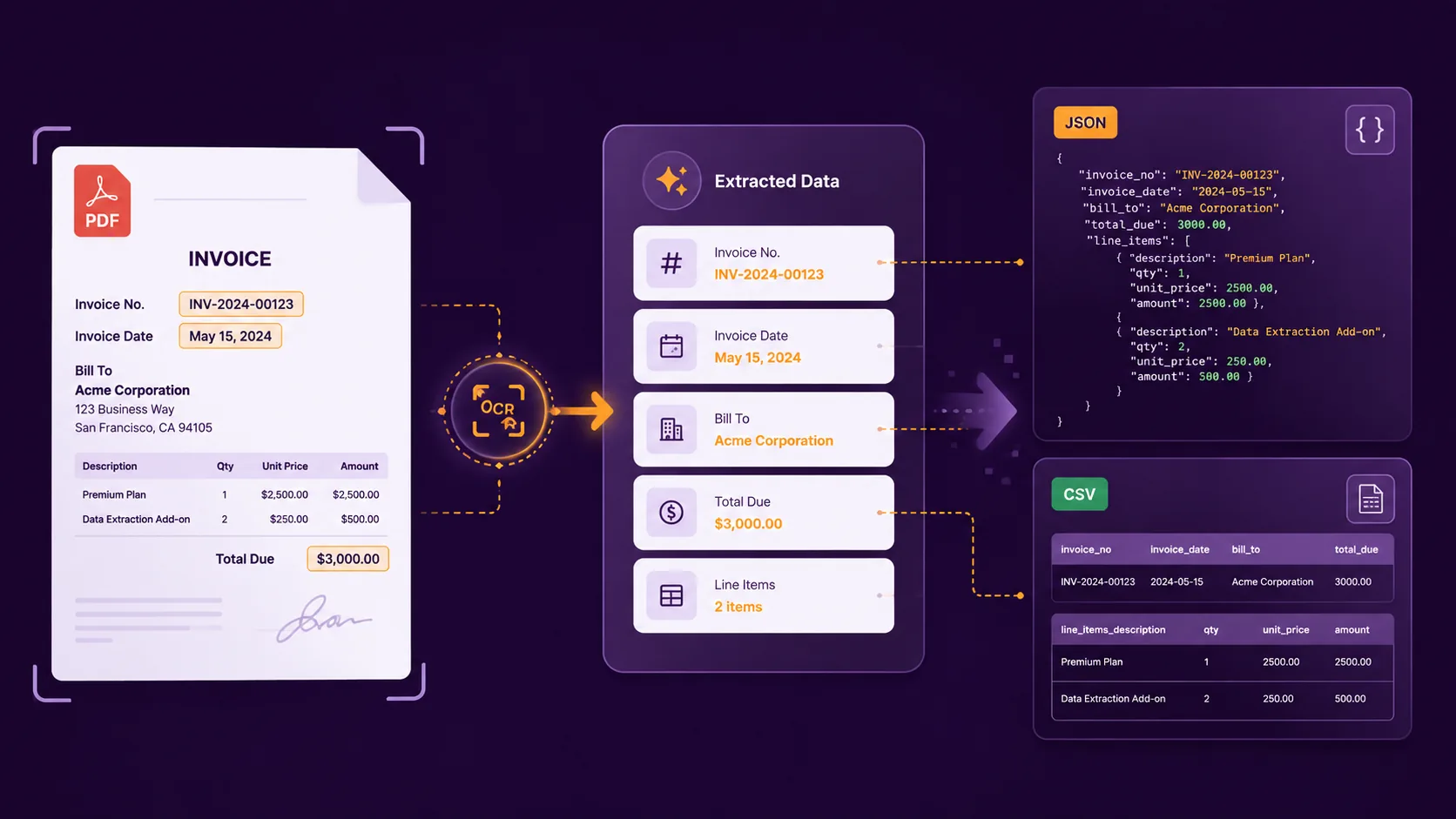
Instead of returning an entire document, field-based PDF data extraction lets you define the information you need first and return those values as structured JSON or CSV.
Key takeaways
- PDF text extraction retrieves document content, while structured data extraction returns selected information as defined fields.
- If you already know which values you need, field-based extraction can be more useful than extracting the entire PDF.
- Fields can represent names, dates, amounts, references, statuses, lists and other document values.
- Scanned PDFs require OCR to recognize their content before specific information can be structured.
- With Heyyel Data Extractor, you can start from suggested fields for common document types or create your own structure with Custom / Blank.
- Extracted information can be reviewed and exported as JSON or CSV.
PDF text extraction vs structured PDF data extraction
A PDF can contain hundreds or thousands of pieces of information, but most business processes only require a small part of them.
Imagine a supplier registration document containing company details, contacts, payment terms, banking information and legal text. Your workflow might only need:
company_name
registration_number
contact_email
payment_terms
A traditional PDF text extractor may return the document like this:
SUPPLIER REGISTRATION FORM

Northstar Services
Registration Number: REG-58421

Primary Contact
Sarah Martin
finance@example.com

Payment Terms
Invoices shall be paid within 30 days...
The information is technically available, but someone — or another system — still has to determine which value corresponds to the supplier name, registration number, email or payment terms.
With structured PDF data extraction, the target fields are defined first:
{
  "company_name": "Northstar Services",
  "registration_number": "REG-58421",
  "contact_email": "finance@example.com",
  "payment_terms": "30 days"
}This approach is also described as document field extraction, key information extraction or key-value extraction.
4 common ways to extract data from PDFs
1. Copy and paste the information manually
For a single document, manual extraction may be enough. You open the PDF, find the required value and copy it into your spreadsheet, CRM or another system.
The problem appears when the same process has to be performed across dozens or hundreds of files. Every PDF still needs to be opened, searched, checked and copied manually.
2. Convert the entire PDF
Another option is to convert the PDF into text, CSV or a spreadsheet. This works when most of the document content is relevant.
If you convert the entire PDF and still need to search the converted file for the information you wanted, you have converted the document — not automated the extraction.
For a 15-page document where only five values matter, converting everything can simply move the same search problem into another format.
3. Build or use a PDF parser
A PDF parser gives developers more technical control. A custom workflow may read PDF text, detect tables, identify patterns, use page coordinates and map values to predefined fields.
This can make sense for highly specific technical requirements, but it also creates maintenance work when layouts or formatting change.
4. Use field-based automated data extraction
Field-based extraction starts with the result you want. Instead of extracting everything first, you define fields such as:
company_name → Text
registration_number → Text
contract_start_date → Date
annual_value → Number
approved → Boolean
The extraction process then identifies the values corresponding to that structure.
| Your goal | Suitable approach |
|---|---|
| Read one PDF | Manual extraction |
| Retrieve all document text | Text extractor |
| Convert a simple table | PDF converter |
| Build custom technical logic | PDF parser |
| Extract a known set of fields | Structured field extraction |
| Process scanned documents | OCR + data extraction |
| Define your own document structure | Custom data extraction |
How to extract specific data from a PDF with Heyyel Data Extractor
Heyyel Data Extractor lets you define the information you want to retrieve before processing the document. The process can be reduced to five main steps.
Step 1 — Upload your document
Start by uploading the file you want to process. Heyyel Data Extractor supports PDF, PNG, JPG, WebP and TIFF, so the source can be a digital PDF, scan or image.
Step 2 — Choose a document type or start from Custom / Blank
You can start from several document types, including:
Presets provide suggested fields. If the document does not fit a standard category — or if you want complete control over the result — use Custom / Blank.
Step 3 — Define exactly what you want to extract
Each field describes a piece of information you want returned.
| Field type | Useful for | Example |
|---|---|---|
| Text | Names, addresses, references, descriptions | Northstar Services |
| Number | Amounts, quantities, percentages | 12500 |
| Date | Issue dates, deadlines, effective dates | 2026-09-01 |
| Boolean | Yes/no conditions | true |
| Lists / structured fields | Products, transactions, people, repeated records | Multiple line items |
Use precise field names
A field named date may be too vague if a contract contains a signature date, effective date, renewal date and expiration date.
Instead, use a precise name such as contract_effective_date.
Add an extraction hint when the field needs context
If the field name alone is not enough, add an instruction describing what the value means.
Extract the final amount payable after taxes and discounts.
Or for a date:
Extract the date on which the agreement becomes effective, not the signature date.
Fields can also be marked as required. Heyyel Data Extractor supports 77 languages, with automatic language detection or manual selection when needed.
Step 4 — Run the extraction and review the result
Once the fields are configured, run the extraction. The output follows the structure you defined rather than simply reproducing the PDF content.
{
  "supplier_name": "Northstar Services",
  "registration_number": "REG-58421",
  "contact_email": "finance@example.com",
  "payment_terms": "30 days",
  "approved": true
}
The extracted values can be reviewed alongside the source document, which helps when a PDF contains several similar values.
Step 5 — Export the data as JSON or CSV
Once extraction is complete, the information can be exported in a structured format.
PDF to JSON
{
  "supplier_name": "Northstar Services",
  "registration_number": "REG-58421",
  "contact_email": "finance@example.com",
  "payment_terms": "30 days"
}
PDF to CSV
| Supplier | Registration | Payment terms | |
|---|---|---|---|
| Northstar Services | REG-58421 | finance@example.com | 30 days |
| Atlas Group | REG-58422 | billing@example.com | 45 days |
This differs from converting the entire PDF to CSV because only the fields selected for extraction need to become part of the dataset.
What about scanned PDFs?
Not every PDF contains selectable text. A scanned PDF may contain images of pages, which means OCR is needed before the relevant information can be extracted.
OCR answers “What text appears on this page?” Data extraction answers “Which values correspond to the information my workflow needs?”
Raw data or specific fields: which should you use?
| Raw data | Specific fields |
|---|---|
| Useful when you want broader document content | Useful when you already know which values you need |
| No need to define individual fields first | You define the expected extraction structure |
| Appropriate when the next step needs most of the document | Appropriate for repeatable business workflows |
| Broader output | More targeted output |
Common challenges when extracting data from PDFs
Different document layouts
The same information can appear in different document layouts. One supplier may display a registration number in the header while another places it inside a company information table.
Ambiguous values
An invoice may contain an invoice date, due date and payment date. A contract may contain a signature date, effective date and expiration date. The challenge is identifying which value represents the field you need.
Scanned or image-based documents
Scanned PDFs may not contain a machine-readable text layer, so OCR is required before their information can be structured.
Tables and repeated information
Invoice line items, bank transactions, products and other repeating records need to remain associated with one another rather than being returned as unrelated text.
Business-specific terminology
One document may use Customer Ref, another Account Reference, and another Client Number for the same concept. Defining the meaning of the field can therefore matter more than matching one label exactly.
When is field-based PDF extraction useful?
Finance
Invoice number, invoice date, total amount, currency and payment status.
Legal
Contracting parties, effective date, expiration date, renewal terms and selected clauses.
Procurement
Supplier name, product reference, quantities, prices and payment terms.
Operations
Site, project, measurements, status and next action from business-specific documents.
Which PDF extraction method should you choose?
Start with the output you need. If the final result is supposed to be a known set of fields, structured field extraction is usually a better fit than converting the entire document.
| Your goal | Suitable approach |
|---|---|
| Read one PDF | Manual extraction |
| Retrieve all document text | Text extractor |
| Convert a simple table | PDF converter |
| Build custom technical logic | PDF parser |
| Extract a known set of fields | Structured field extraction |
| Process scanned documents | OCR + data extraction |
| Define your own document structure | Custom data extraction |
Extract the information your workflow actually needs
When your next step only depends on a specific set of values, define those fields first and return a cleaner, more usable structured result.
Extract specific data from your PDF →Frequently asked questions
How can I extract specific data from a PDF?
Define the fields you need and use a document data extraction tool to return those values separately instead of retrieving the entire document text.
Can I extract only selected fields from a PDF?
Yes. Document field extraction is designed to retrieve selected information from a PDF according to a predefined structure.
Can I extract data from a scanned PDF?
Yes. A scanned PDF first requires OCR to recognize the content, after which the information can be mapped to the required fields.
Can I extract PDF data without coding?
Yes. A configurable extraction tool can let you define fields and process documents without building and maintaining your own PDF parser.
Can I extract PDF data to JSON?
Yes. PDF to JSON is useful when document values need to be passed to software, databases or automated workflows while preserving their structure.
Can extracted PDF data be exported to CSV?
Yes. CSV is useful when selected fields need to be represented as rows and columns for spreadsheets or other tabular workflows.
What is the difference between OCR and PDF data extraction?
OCR recognizes machine-readable text from scanned or image-based documents. Data extraction identifies and structures the specific information you need from that content.
What if my PDF does not match a standard document type?
Use Custom / Blank in Heyyel Data Extractor to define your own fields and create an extraction structure adapted to the document.