
How to Extract Invoice Line Items, Taxes, and Totals Automatically
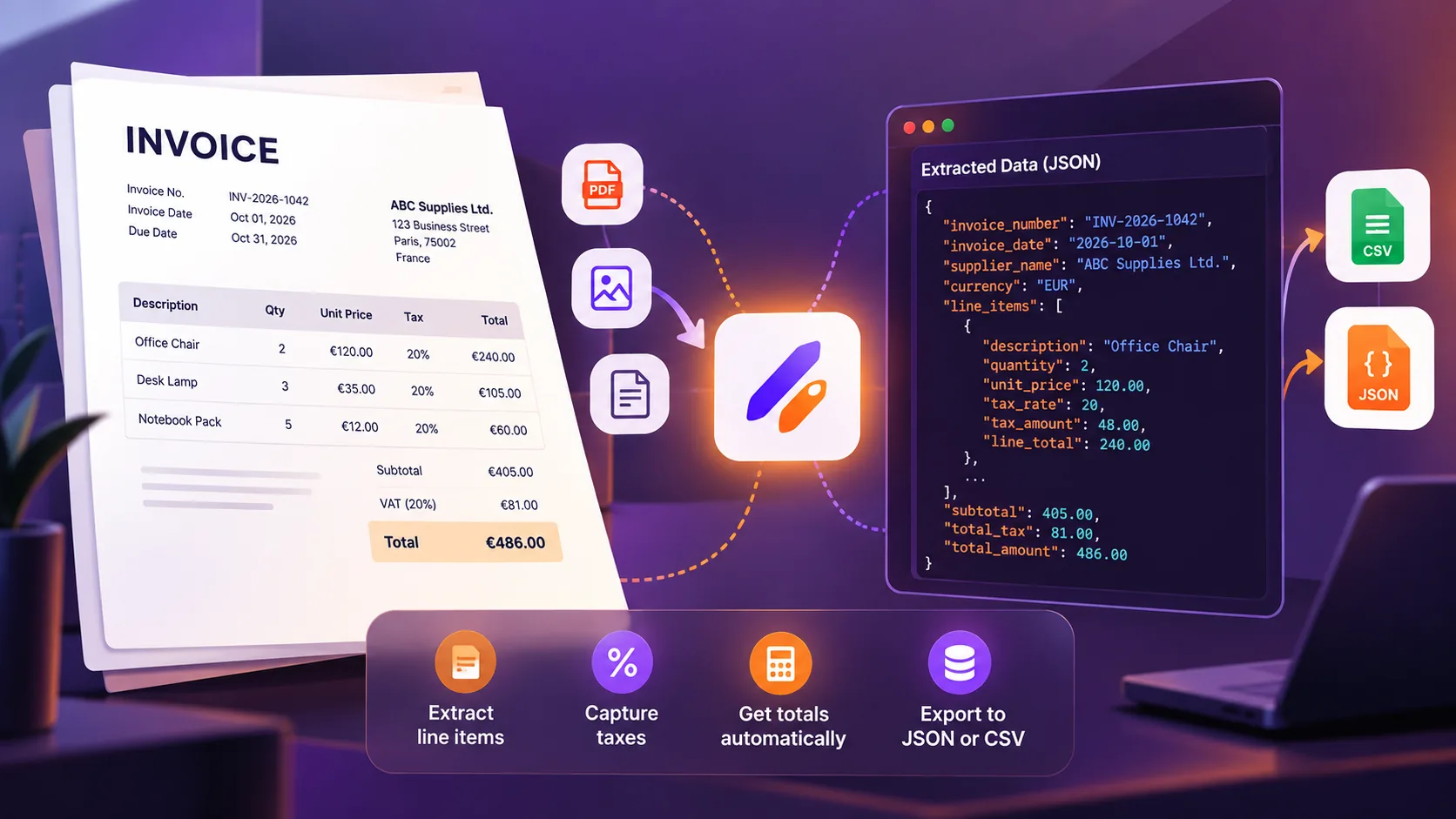
Processing a handful of invoices manually may be manageable. But when supplier invoices arrive in different PDF layouts, extracting each product description, quantity, tax amount, and total becomes repetitive and error-prone.
Automated invoice data extraction converts invoice PDFs and scans into structured fields that finance teams can review, export, and reuse. Rather than copying every row into a spreadsheet, businesses can retrieve invoice details and repeated line items in formats such as JSON or CSV.
This guide explains which invoice fields to extract, how to configure a practical workflow, and what to check before using the results in accounting systems.
On this page
What Is Invoice Line Item Extraction?Why Automate Invoice Line Item Extraction?Which Invoice Fields Can Be Extracted?How to Extract Invoice Line Items, Taxes, and TotalsExample: Extract Invoice Line Items into JSONInvoice OCR vs. Structured Invoice Data ExtractionCommon Challenges in Invoice Data ExtractionWhere Can Extracted Invoice Data Be Used?Extract Invoice Data with Heyyel Data ExtractorFrequently Asked QuestionsFinal ThoughtsWhat Is Invoice Line Item Extraction?
Invoice line item extraction identifies individual products or services within an invoice and organizes their details into structured records. It is different from reading a single invoice total: a 30-row invoice may require 30 separate entries, each containing its own description, quantity, price, tax, and amount.
An invoice usually contains two levels of information:
- Header-level fields: invoice number, issue date, due date, supplier, customer, currency, subtotal, total tax, and amount due.
- Repeated line-item fields: product or service description, quantity, unit price, discount, tax rate, tax amount, and line total.
Structured extraction connects those fields to their values so each line item can be used independently while remaining associated with the original invoice.
Why Automate Invoice Line Item Extraction?
Reduce repetitive data entry
Entering supplier invoice lines into spreadsheets is time-consuming, especially when similar documents arrive every week. Compared with manual data entry, automated extraction reduces repetitive transcription and frees teams to focus on reviewing exceptions.
Work across different supplier layouts
Not all suppliers use the same invoice template. Column names, line breaks, discounts, and tax summaries can vary widely. A configurable field structure helps make output more consistent even when the input is not standardized.
Prepare data for existing workflows
Extracted invoice rows can be reviewed for accounts payable processing, purchase-order matching, expense reporting, and supplier reconciliation. Exporting structured values makes later processing easier; it does not by itself approve invoices or post transactions to an accounting system.
Spot inconsistencies for review
Clearly separated quantities, prices, tax amounts, and totals make it easier to detect missing values and review calculations against the source document.
Which Invoice Fields Can Be Extracted?
The best field structure depends on what happens after extraction. A team reconciling purchase orders may need every line and quantity; another team generating expense summaries may need only vendor, dates, and totals.
How to Extract Invoice Line Items, Taxes, and Totals
The following process illustrates a practical workflow using Heyyel Data Extractor.
Step 1: Upload the invoice
Start with a digital PDF or a readable scan. Heyyel Data Extractor supports PDF, JPG, PNG, WebP, and TIFF files. Good scan quality matters: low-resolution text or cropped table rows can lead to incomplete results.
Step 2: Choose the Invoice preset
Select the Invoice preset as a starting point. It can be adjusted to match the fields your workflow actually requires, from invoice identification to repeated line items.
Step 3: Define a structured line-item array
Set up a repeated line-item field containing values such as description, quantity, unit_price, tax_rate, tax_amount, and line_total. Define invoice-level fields separately so the total amount is not confused with a single line total.
Clear hints help specify what each field means. This is especially important when extracting specific fields from PDFs that include several similar-looking amounts.
Step 4: Run extraction and review the output
Process the document, then verify that every relevant row was captured. Compare the extracted descriptions, quantities, prices, and tax values with the original invoice. For multi-page invoices, check that repeated table headers were not mistaken for items.
Step 5: Validate taxes and totals
Recalculate line totals where appropriate and check whether discounts, shipping, tax rules, or rounding explain any differences. Review values before financial posting or compliance use.
Step 6: Export as JSON or CSV
Use JSON when you need nested invoice data and arrays of line items. CSV is useful for spreadsheet review and tabular processing. The resulting data can then be prepared for other applications.
Example: Extract Invoice Line Items into JSON
Consider a fictional supplier invoice with three items:
The subtotal is €405.00, total tax is €81.00, and total including tax is €486.00.
{
  "invoice_number": "INV-2026-1042",
  "invoice_date": "2026-10-01",
  "supplier": "ABC Supplies Ltd",
  "currency": "EUR",
  "line_items": [
    {"description": "Office Chair", "quantity": 2, "unit_price": 120.00, "tax_rate": 20, "tax_amount": 48.00, "line_total": 240.00},
    {"description": "Desk Lamp", "quantity": 3, "unit_price": 35.00, "tax_rate": 20, "tax_amount": 21.00, "line_total": 105.00},
    {"description": "Notebook Pack", "quantity": 5, "unit_price": 12.00, "tax_rate": 20, "tax_amount": 12.00, "line_total": 60.00}
  ],
  "subtotal": 405.00,
  "total_tax": 81.00,
  "total_amount": 486.00
}
Illustrative data only. Actual output fields and formatting depend on the configuration of the extraction process.
Keeping invoice totals outside the line_items array makes it easier to distinguish individual product amounts from document-level totals.
Invoice OCR vs. Structured Invoice Data Extraction
Optical Character Recognition (OCR) reads characters in scanned documents. For example, it may recognize a line as Office Chair 2 120.00 20% 240.00. Structured extraction goes further by associating those values with quantity, unit price, tax rate, and line amount fields.
The difference between OCR and data extraction matters most when the goal is not just to read text but to use individual invoice fields downstream.
Common Challenges in Invoice Data Extraction
Supplier-specific templates
Tables may have unexpected labels, merged cells, or multi-line descriptions. Consistent extraction field definitions can help, but exceptions still need review.
Multi-page invoices
Long invoices may split line-item tables over several pages. Verify that rows are neither skipped nor duplicated when the document is processed.
Multiple tax rates
One invoice may apply different rates to different products. When the source provides them, capture line-level rates or tax amounts rather than relying only on the invoice-wide tax total.
Discounts and adjustments
A discount might apply to a single row or to the entire invoice. Shipping costs and rounding adjustments can also affect totals. Keep these concepts separate in your field structure.
Low-quality scans
Blurry, rotated, or low-resolution scans can affect text recognition. Ensure that amounts, decimal separators, and currency symbols remain readable.
Where Can Extracted Invoice Data Be Used?
Accounts payable
Structured values can help teams prepare incoming supplier invoices for approval and review.
Purchase-order matching
Product descriptions, quantities, and unit prices can be compared with purchase-order records, with discrepancies flagged for manual investigation.
Expense and tax review
Invoice dates, subtotals, discounts, and tax values can be organized for reporting, while finance teams validate applicable accounting and tax treatment.
Custom document workflows
Some businesses need additional fields such as internal references, project IDs, or service periods. Custom data extraction supports the definition of fields beyond standard invoice templates.
Extract Invoice Data with Heyyel Data Extractor
Heyyel Data Extractor helps businesses transform PDFs and scanned invoices into structured information. Using the Invoice preset and configurable fields, users can identify invoice details and organize repeated line items into JSON or CSV output.
For finance teams processing supplier documents in varied formats, invoice data extraction can reduce the time spent preparing documents for review and downstream workflows.
Frequently Asked Questions
What tool extracts line items, taxes, and totals from invoices?
An AI-powered invoice extraction tool can identify descriptions, quantities, prices, tax amounts, and invoice totals. Heyyel Data Extractor supports configurable fields and structured JSON or CSV output.
Can OCR extract invoice line items?
OCR recognizes the text in invoice tables. Additional extraction logic is needed to organize it into fields such as quantity, unit price, and line total.
How do I extract invoice data from PDFs automatically?
Upload a PDF, choose an invoice preset or configure fields, run extraction, verify the returned values, and export the results in a structured format.
Can invoice line items be extracted into JSON?
Yes. Each item can be represented as an object inside an array, while the invoice number, supplier, subtotal, and total remain separate document-level fields.
Can AI extract multiple tax rates from an invoice?
It can identify tax rates or amounts where these values are shown clearly and relevant fields are configured. Financial teams should verify the extracted values.
How are invoices with different layouts handled?
Configurable extraction fields help accommodate different layouts, though complex or unusual documents still require validation.
Can multi-page invoices be processed?
Multi-page invoices can be processed, but the extracted line-item list should be checked for missing and duplicated rows.
Is automated invoice extraction suitable for accounting?
It is useful for preparing accounting data, but extracted financial values should be validated before posting or reconciliation.
Final Thoughts
Automated invoice line item extraction turns complex PDF and scanned invoices into records that are easier to review and reuse. The most reliable workflow combines clear field definitions, structured output, and validation of prices, taxes, adjustments, and totals.
For businesses processing many supplier invoices, this can reduce repetitive transcription and make financial document handling more consistent.